Pharmacy Sales Management System (POS) using VB.NET and MySQL with Source Code
Hi, this is a school project that might help other IT students or self-learners that studying vb.net programming. This Pharmacy Sales Management System / Point of Sale System (POS) source code was dev...
Pharmacy Sales Management System (POS) using VB.NET and MySQL with Source Code
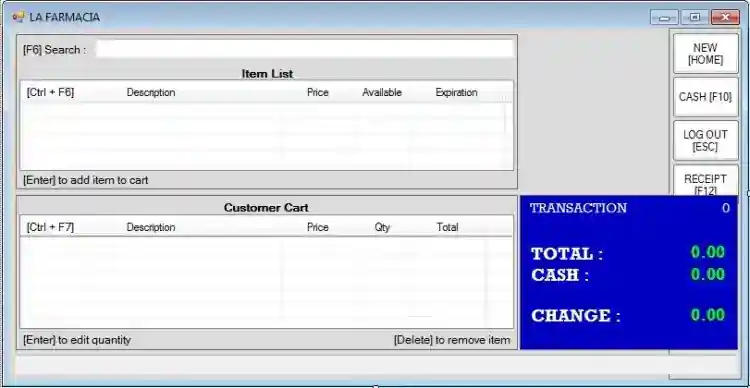
Hi, this is a school project that might help other IT students or self-learners that studying vb.net programming. This Pharmacy Sales Management System / Point of Sale System (POS) source code was developed using VB.net and MySQL database. The system has a simple management of product feature which are the list of medicine, creating new, updating product, and adding a new stock. Talking about cash registry page/form, this form is where the sales transaction is being recorded or done. The cash registry form is has a user-friendly interface and also this have a keyboard shortcuts which also displayed. The system generates a printable receipt. The system has 2 types of users login which are the admin and cashier users. The admin has the privilege to manage all the data of the system while the cashier can only manage the sales transaction or the cash registry page/form.
Features:
User Login (Admin)
Cashier Login
Product or Medicine Management
User Management
Generates Receipt
Generates Sales Report
How to run
To run the project follow the steps below and also, download and install the software needed to run the project source code.
Requirements
Download and Install Microsoft Visual Studio Software.
Download and Install XAMPP.
Run the source code
Download and Extract the source code zip file. (download button is located below)
Open your XAMPP Control Panel and start "Apache" and "MySQL".
Open a web browser and browse localhost/phpmyadmin.
Create a new database naming "pmisdb".
Locate and Extract the "pmisdb.sql.zip" file in the source code root folder.
Import the "pmisdb.sql" file in your "pmiasdb" database.
Locate the "WindowsApplication1.sln" file in the source code folder.
Open the solution file ".sln" with your Microsoft Visual Studio Software.
Press the "F5" key on your keyboard to run the system.
Sample Credentials
Admin
Username: admin
Password: admin
Cashier
Username: testrun
Password: 12345
That's it, you can now explore the system functionalities and features. I hope this will help you with what you are looking for. Feel free to modify the source code.
Enjoy Coding:)
Screenshots

Download Project